Every developer knows the satisfaction of finishing a solid coding session. I had just wrapped up a major upgrade to my personal analytics dashboard. I added a date-range picker, a heatmap-style traffic distribution chart to identify peak hours, and an entity explorer to track specific pages and links.
The code was clean, the local development server looked flawless, and it was time to ship.
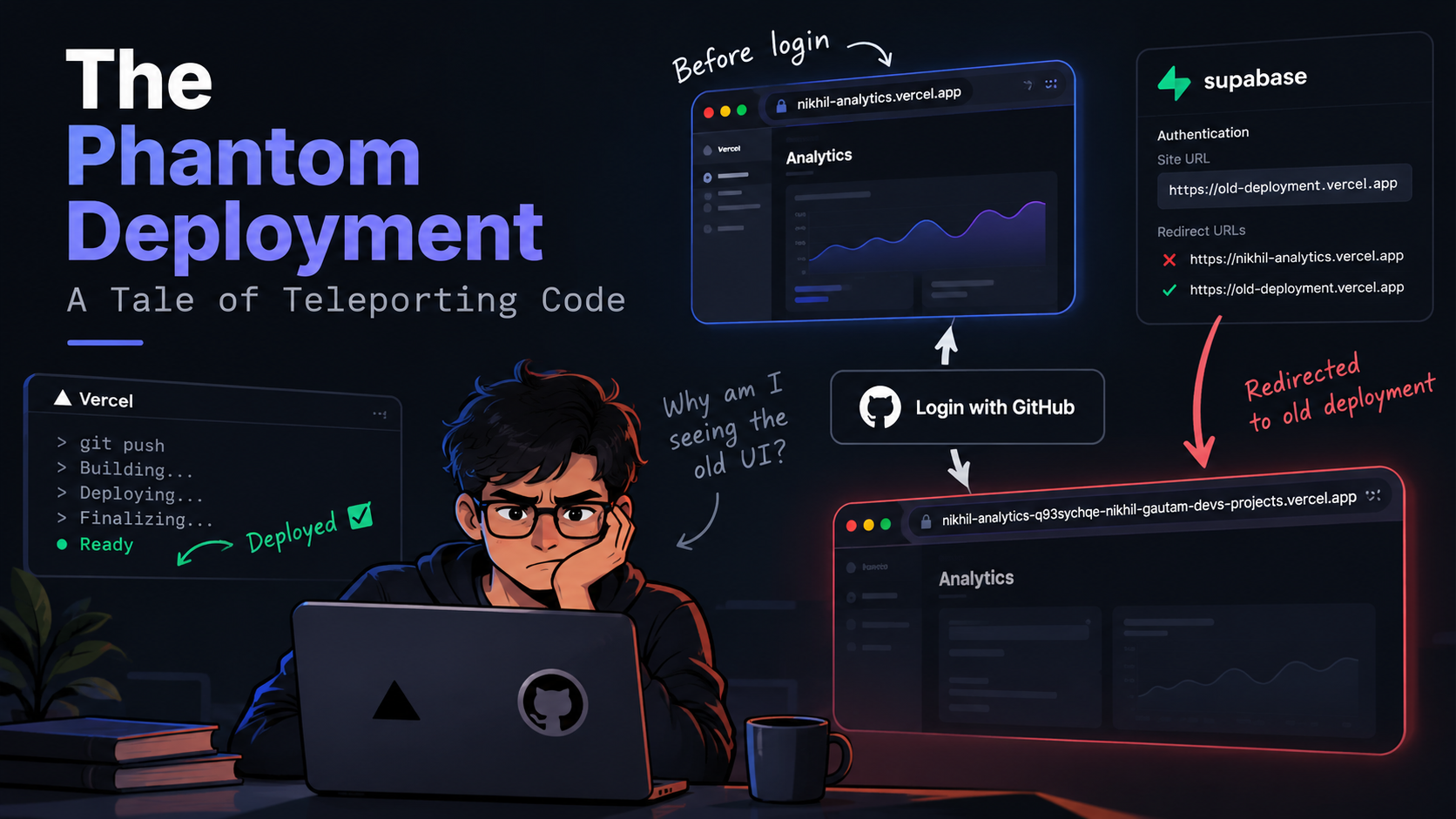
I ran git push, watched the Vercel deployment logs, and saw the glorious Ready status. I opened the production URL, logged in via GitHub, and stared at a dashboard that looked exactly like it did yesterday.
The new buttons and date picker were nowhere to be found.
And so began the hunt for the phantom deployment.
The Usual Suspects: Cache and Builds
My first instinct was the classic developer assumption: it’s just a caching issue.
Sometimes, stale build artifacts or cached assets can cause unexpected behavior, so I jumped into the Vercel dashboard and triggered a redeployment without the build cache.
The build completed successfully. I refreshed the page.
Still nothing.
Maybe my browser was holding onto a stubborn cache or a rogue service worker? I opened an Incognito window. The old dashboard stared back at me.
To rule out a problem specific to my machine or network, I pulled out my phone, disconnected from Wi-Fi, and checked the site over cellular data.
The new features were still missing.
At this point, the behavior made no sense. I had a successful deployment, I had tried a fresh browser session, and I had tested another device. Why was I still seeing the old version?
Deep Dive into the Bundle
I decided to stop guessing and inspect what Vercel was actually serving.
I fetched the raw HTML directly from my production URL using the terminal. The HTML referenced a JavaScript bundle named index-z_H2GFjI.js.
I downloaded that bundle and searched its contents.
There they were: the exact strings for my new features, including Traffic distribution and Explore page / link.
The new code was present in the JavaScript bundle being served from the production domain.
This was an important clue. The deployment wasn’t simply missing my changes. The production URL was serving a bundle that contained them.
But the dashboard in my browser still looked old.
Something else was going on.
Chasing the Cache
I wasn’t ready to rule out a deployment or asset-cache issue entirely. To test that possibility, I added a tiny, invisible comment to the top of Dashboard.jsx, committed the change, and pushed it to GitHub.
Vercel created a new deployment.
I opened the production URL again, logged in, and waited for the dashboard to load.
The new features were still gone.
At this point, continuing to invalidate caches and trigger redeployments wasn’t going to help. I needed to look more closely at what was happening in the browser.
The Aha Moment
I finally paid attention to the URL bar after clicking the GitHub login button.
Before logging in, I was on:
https://nikhil-analytics.vercel.app/
But after the GitHub authorization flow finished and the dashboard loaded, the URL bar showed something entirely different:
https://nikhil-analytics-q93sychqe-nikhil-gautam-devs-projects.vercel.app
That wasn’t my production domain.
It was a deployment-specific Vercel URL pointing to an older version of the application. Unlike my production domain, which followed the current production deployment, this URL identified a particular deployment.
That explained why the old dashboard kept appearing. I wasn’t looking at the latest production version anymore. I was being redirected to an older deployment after logging in.
But why was authentication taking me there?
The Root Cause: Security Doing Its Job Too Well
The culprit wasn’t Vercel, Vite, or a caching bug. It was my Supabase Authentication configuration.
I went back to my login implementation and found this:
async function handleGitHubLogin() {
  setLoading(true);
  setError(null);

  const { error } = await supabase.auth.signInWithOAuth({
    provider: "github",
    options: {
      redirectTo: window.location.origin,
      scopes: "read:user",
    },
  });

  if (error) {
    setError(error.message);
    setLoading(false);
  }
}
At first glance, this looked perfectly reasonable.
I wasn’t hardcoding a redirect URL. Instead, window.location.origin dynamically determined the origin of the application running in the browser.
If I started the login flow on https://nikhil-analytics.vercel.app, the requested redirect URL would be the production domain.
So why was I ending up on an old deployment?
Supabase Auth maintains a list of allowed Redirect URLs. When an application initiates authentication, the requested redirectTo URL must match an entry in that list. If the URL isn’t allowed, Supabase can fall back to the project’s configured Site URL.
My production domain wasn’t configured correctly in the Redirect URLs allow list, and the Site URL was still set to an old, deployment-specific Vercel URL from when I first hosted the project.
That mismatch explained the behavior.
I was starting the login flow on the correct production domain and requesting a redirect back to that same domain. But Supabase couldn’t use the requested destination because it wasn’t allowed by the project’s configuration. Instead, it fell back to the old Site URL.
After GitHub authentication, I was sent to an older deployment, where I saw the outdated dashboard.
The code was fine. The deployment was fine. The redirect configuration was not.
The Resolution
The fix was surprisingly simple.
I opened the Supabase dashboard, navigated to Authentication → URL Configuration, and updated the Site URL to:
https://nikhil-analytics.vercel.app
I also checked the Redirect URLs configuration to ensure the production URL was allowed.
Then I went back to the browser and tried logging in again.
This time, the authentication flow returned me to the correct production domain. The new date-range picker and traffic distribution charts rendered exactly as expected.
No more phantom deployment. No more unnecessary redeployments.
Just a configuration issue hiding behind what looked like a deployment bug.
What I Learned
This incident reminded me that a successful deployment doesn’t necessarily mean users are accessing the version you intended to serve.
When debugging a problem like this, it’s tempting to focus entirely on the build pipeline, browser cache, or CDN. Those are reasonable places to start, but they aren’t the only places where things can go wrong.
In my case, the most useful debugging step wasn’t another redeployment. It was checking the URL after authentication.
That single observation changed my understanding of the entire problem.
If your application looks outdated despite a successful deployment, don’t just ask whether the latest code was deployed. Check which URL you’re actually using, especially after authentication or other redirects.
Sometimes, the code isn’t going anywhere.
You’re the one being redirected.
— Nikhil Gautam